
Is your Wi-Fi dropping frequently? Learn why your home network Wi-Fi keeps dropping: common causes, fixes, and solutions. This article covers everything you need to stabilize your connection.
Key Takeaways
- Common causes of Wi-Fi drops include router placement issues, electronic interference, outdated hardware, and network congestion.
- Effective solutions to stabilize Wi-Fi include optimizing router placement, minimizing interference, updating firmware, and managing network traffic.
- For persistent issues, consider advanced solutions like Wi-Fi extenders, switching Wi-Fi channels, or resetting network settings to enhance connectivity.
Introduction to Wi-Fi Issues
Wi-Fi issues are a common frustration for anyone relying on an internet connection at home or work. Whether you’re streaming, working remotely, or just browsing, a stable internet connection is essential for smooth daily activities. Unfortunately, problems like weak Wi-Fi signals, slow internet speeds, and frequent internet disconnections can disrupt your routine and cause unnecessary stress.
Understanding the root causes of Wi-Fi connection problems is the first step toward achieving a stable internet connection. Issues can stem from improper network settings, outdated router settings, or even interference from other electronic devices. Sometimes, a weak Wi-Fi signal or frequent internet disconnections are signs that your wi fi network needs attention.
To tackle these challenges, it’s important to know how to optimize your wi fi connection, adjust your router’s settings, and troubleshoot common network issues. In this article, we’ll break down the most frequent Wi-Fi problems and guide you through practical solutions to restore a reliable and stable internet connection. By the end, you’ll be equipped with the knowledge to minimize internet disconnections and keep your wi fi signals strong.
Understanding Wi-Fi Connectivity
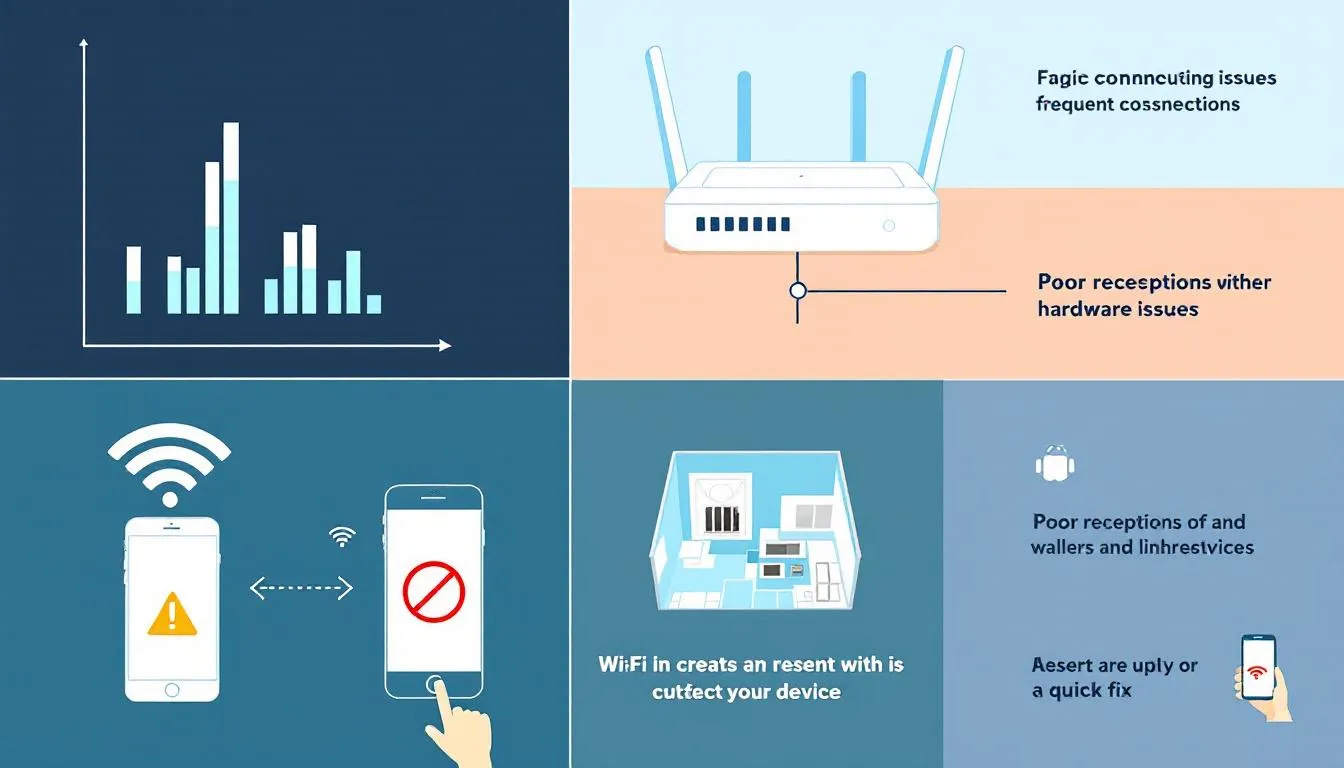
A stable network connection is the backbone of reliable Wi-Fi connectivity. Your Wi-Fi network ensures a consistent link between your router and connected devices when functioning properly in wireless networks. However, many external factors can impact this wireless connection, so understanding the basics of how a wifi connection works is crucial.
The local network refers to the internal network within your home or office, separate from the broader internet. Understanding how your local network operates is key to diagnosing and fixing Wi-Fi issues.
A typical Wi-Fi network comprises a modem and a wi fi router. The modem’s job is to translate the analog signals from your Internet Service Provider (ISP) into a digital format that your devices can understand. The router then distributes this digital signal to your devices, either through wired or wireless connections. When this process is interrupted, it can lead to various connectivity issues, including Wi-Fi drops.
The quality of the network connection between the router and your devices heavily influences Wi-Fi consistency. Factors like the physical layout of your home, electronic interference, and the number of connected devices can all play a role in how stable your Wi-Fi signal is. Grasping these elements is vital for diagnosing and resolving Wi-Fi issues effectively.
This article provides insights into common causes of Wi-Fi drops and best practices for maintaining a stable internet connection. With this foundational knowledge, you’ll be better equipped to troubleshoot and resolve any Wi-Fi issues that come your way.
Common Causes of Wi-Fi Drops
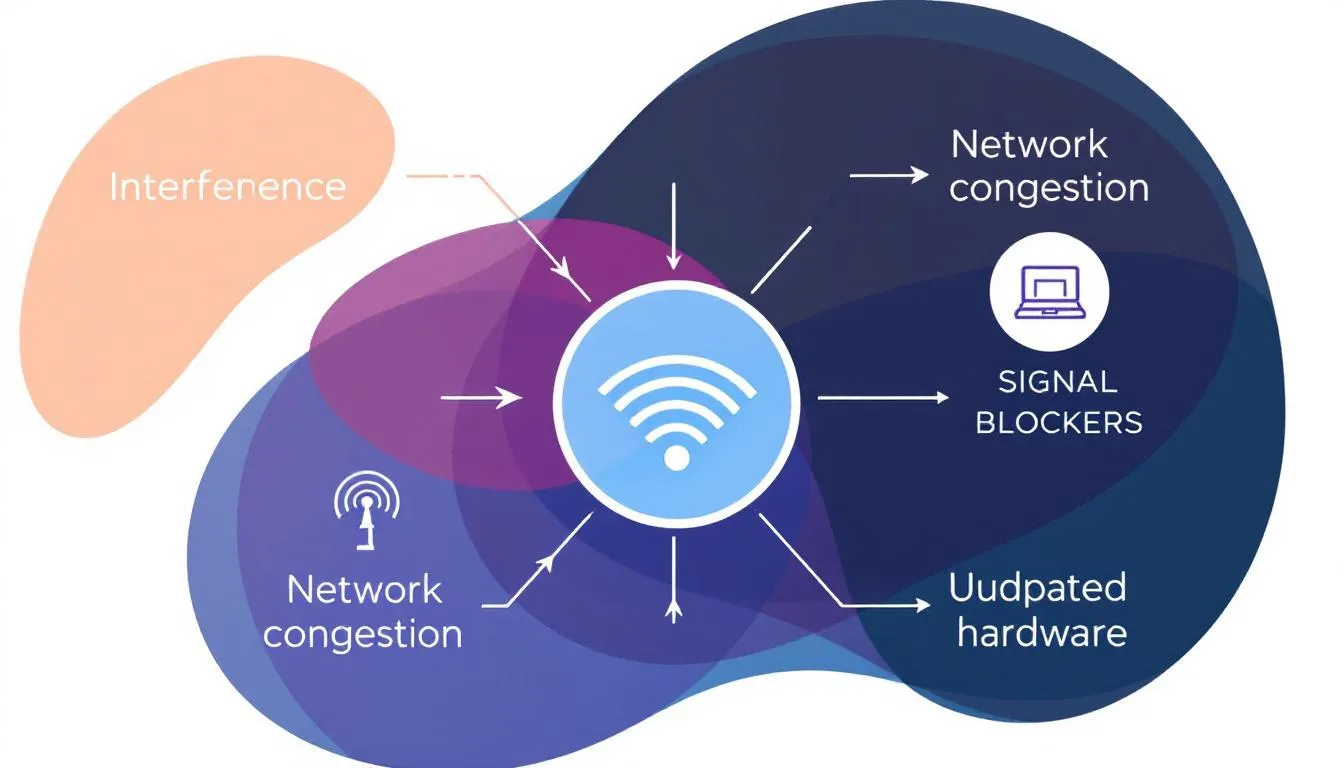
Wi-Fi drops can be incredibly frustrating, especially when they happen frequently. Several factors can contribute to these interruptions, including:
- Router placement
- Electronic interference
- Outdated hardware
- Network congestion
Interference from nearby wi fi networks can also contribute to connection drops.
Understanding these common causes is the first step in diagnosing and fixing your Wi-Fi issues.
In the following subsections, we will delve deeper into each of these causes, providing detailed explanations and practical solutions to help you maintain a stable Wi-Fi connection. Identifying the root cause allows you to take targeted actions to enhance your Wi-Fi performance and reduce future drops.
Router Placement Issues
One of the most common reasons for Wi-Fi drops is improper router placement. Placing your router in an enclosed space or surrounded by obstructions can significantly diminish signal strength, causing frequent disconnections. Materials like stone, metal, and water can obstruct Wi-Fi signals, leading to a weak wi fi signal, so placing your router optimally is crucial to avoid weak wi fi signals.
For optimal Wi-Fi performance, consider the following tips for positioning your router:
- Position your router centrally and elevated with minimal obstructions.
- Avoid placing it in enclosed spaces or behind large furniture, as this can weaken the signal.
- Keep the router’s antennas unobstructed and in their default positions to help maintain signal strength.
In addition to placement, consider the distance between your router and the devices connected to it. The further away a device is from the router, the weaker the Wi-Fi signal will be. Strategically placing your router and minimizing physical barriers can significantly improve Wi-Fi coverage and reduce connection drops.
Interference from Other Devices
Electronic devices can disrupt your Wi-Fi signal, causing frequent drops and reduced speeds. Common culprits include network adapters that disrupt your Wi-Fi signal.
- Microwaves
- Cordless phones
- Bluetooth devices These devices can emit frequencies that disrupt your Wi-Fi connection. This type of interference can lead to weakened signals and a less stable internet connection.
Keep your router away from these electronic devices to mitigate interference. Positioning your router in a location with minimal interference sources will help maintain a strong and stable wireless signal. TP Link Wi-Fi signal.
Using dual-band routers that operate on both 2.4 GHz and 5 GHz frequencies can also help reduce radio interference from other devices.
Outdated Firmware and Hardware
Outdated firmware and hardware can greatly impact Wi-Fi performance and stability. Older routers may not be equipped to handle modern high-speed internet demands, leading to frequent disconnections and impacting your internet speed. Frequent drops, sluggish performance, and difficulty connecting to the network are signs of a failing router.
Upgrading to a modern router can enhance your internet performance and reliability. Modern routers come with the latest technology and security features, ensuring better compatibility with high-speed internet plans and improved stability. Regularly updating your router’s firmware is essential for maintaining security and optimizing performance.
Firmware updates often include bug fixes, performance improvements, and security patches that can resolve Wi-Fi connectivity issues. Keeping your hardware and firmware updated reduces the likelihood of Wi-Fi drops and ensures a more stable internet connection.
Network Congestion
Network congestion occurs when too many devices are connected to the same network or when a slow internet plan is in use. This can overwhelm the available bandwidth, causing intermittent disconnections and unstable connections. High traffic from multiple devices and usage of high-bandwidth applications are common causes of network congestion and network overload.
To manage network congestion:
- Limit the number of active connections, especially during high-bandwidth tasks.
- Disconnect non-essential devices.
- Avoid running multiple high-demand applications simultaneously.
- Consider upgrading your internet plan to one that offers higher speeds and more bandwidth to accommodate your household’s needs.
Effectively managing network traffic can significantly improve Wi-Fi performance and reduce connection drops. Monitoring connected devices and prioritizing critical activities can maintain a stable internet connection even during peak times.
ISP Service Interruptions
ISP service interruptions refer to outages or maintenance periods by internet providers that disrupt connectivity. These interruptions can originate from the service provider’s network issues, leading to temporary loss of internet access. Such outages are often beyond your control yet can significantly impact Wi-Fi connectivity.
If you experience frequent internet disconnections, check with your ISP for any ongoing maintenance or outages in your area. Your ISP can inform you about the cause of the disruption and provide an estimated resolution time for your internet connections.
Being informed about ISP service interruptions helps you understand the cause of Wi-Fi issues and plan accordingly.
Diagnosing Wi-Fi Connection Problems
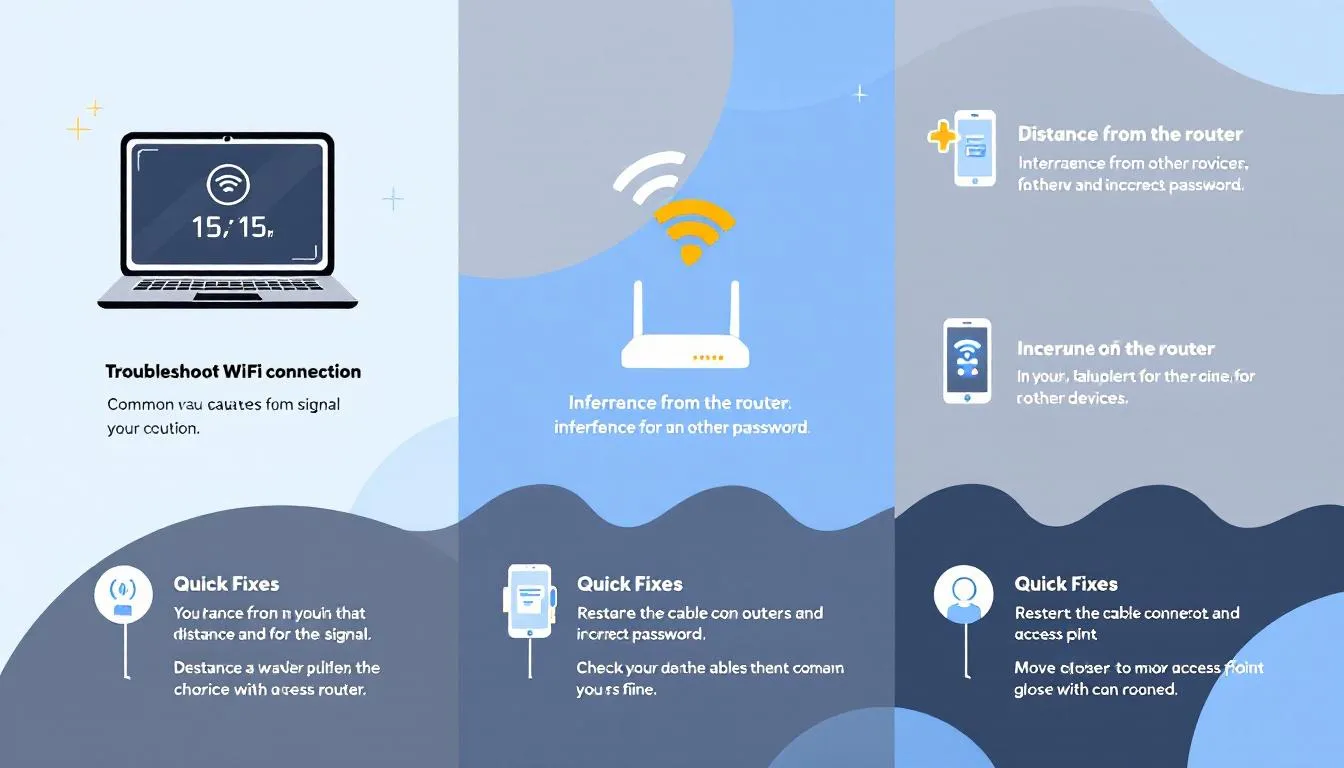
Diagnosing Wi-Fi connection problems requires a systematic approach, focusing on hardware and software configurations, including how to select advanced network settings . Restarting the modem and router often resolves connectivity issues by reestablishing a fresh connection to the ISP. Restarting your device can also help flush out stubborn glitches, including networking issues.
Checking your computer’s network settings is an important step in diagnosing Wi-Fi issues, as incorrect settings can prevent your device from connecting properly.
Identifying Wi-Fi issues involves testing various factors contributing to a weak or unstable signal. Factors include:
- Router location
- Physical barriers
- Interference from electronic devices
- Overcrowding caused by too many networks using the same Wi-Fi channel, leading to potential disconnections.
Resetting network settings can restore lost connectivity features and resolve configuration issues. Keep in mind that this process may require reinstalling networking software such as VPNs or antivirus programs. Systematically diagnosing these elements allows you to pinpoint the root cause of Wi-Fi problems and take appropriate steps to fix them.
Running Speed Tests
Running speed tests on your Wi-Fi connection is crucial for diagnosing performance issues. Speed tests identify weak spots and assess the overall performance of your internet connection. Analyzing speed fluctuations helps determine if your connection is unstable and identifies areas needing improvement.
Speed tests assess latency and throughput, providing insights into both wired and wireless performance. These tests reveal if your internet speed is significantly slower speeds than expected, indicating potential issues with your Wi-Fi setup. A speed test can help diagnose these issues.
Regularly running speed tests helps monitor your connection’s performance and make necessary adjustments for a stable internet connection.
Checking Router Settings
Accessing your router’s wi fi settings is essential for maintaining a stable Wi-Fi connection. Log in via a web browser using the router’s IP address to access settings. Once logged in, adjust various settings to improve Wi-Fi consistency and stability.
Router configuration significantly impacts the stability of your internet connection. Adjusting settings prevents automatic connections to weaker networks and ensures your devices receive strong signals. IP reservation, for example, ensures a device consistently receives the same router’s ip address on your network, reducing connectivity issues.
Make sure the IP address pool is large enough to exceed the number of devices connected to prevent connectivity issues. Checking and optimizing your router’s settings enhances Wi-Fi performance and reduces the likelihood of drops.
Monitoring Network Traffic
Monitoring network traffic is essential for ensuring optimal Wi-Fi connectivity and performance. Utilizing network monitoring tools can help detect devices that consume excessive bandwidth, affecting overall network performance. By identifying bandwidth-heavy devices, you can manage network congestion and improve your internet experience.
Evaluating internet usage through network traffic monitoring identifies resource-consuming devices and activities, as well as the device manager. This information helps make informed decisions about managing network load, ensuring a stable connection during peak usage.
Improving Wi-Fi Signal Strength
A strong Wi-Fi signal is the foundation of a fast and stable internet connection. If you’re experiencing slow speeds or unreliable connectivity, there are several effective ways to boost your Wi-Fi performance and ensure your devices stay connected.
One of the best upgrades you can make is investing in a modern wi fi router from trusted brands like TP-Link or Netgear. These routers support the latest Wi-Fi standards, offering better coverage and faster speeds. For the most reliable connection, consider using an ethernet cable to connect key devices directly to your router—wired connections are less prone to interference and provide consistently high internet speeds.
For wireless connections, optimizing your router settings can make a significant difference. Changing the wi fi channel can help minimize interference from other devices, such as cordless phones and electronic devices, which often operate on similar frequencies. Using a Wi-Fi analyzer app can help you identify the least crowded wi fi channel for your network, allowing you to adjust your router’s settings for optimal performance.
If you have a large home or struggle with dead zones, mesh Wi-Fi systems are an excellent solution. Mesh systems use multiple access points to blanket your space with strong wi fi signals, eliminating weak spots and ensuring a stable internet connection throughout your home.
Don’t forget to keep your network adapter drivers up to date and periodically reset your network settings to resolve lingering connectivity issues. These simple maintenance steps can prevent many common problems and keep your wi fi performance at its best.
By combining these strategies—upgrading your hardware, optimizing network settings, and minimizing interference—you can significantly improve your signal strength and enjoy a faster, more reliable internet connection.
Effective Fixes for Wi-Fi Drops
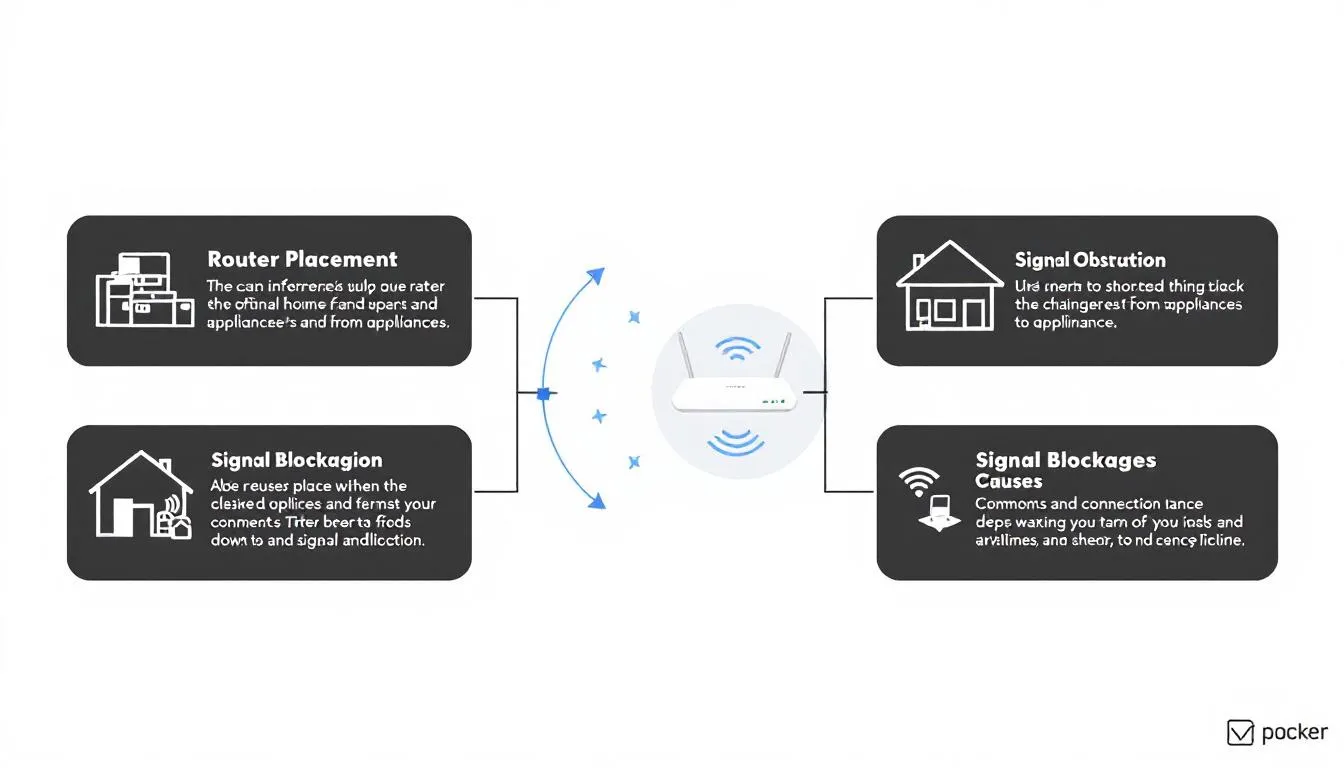
Resolving Wi-Fi drops requires a combination of hardware and software adjustments. Regular updates to the network adapter driver and software are crucial for maintaining optimal performance. Keeping devices connect updated ensures they work together for stable connectivity. A device connected via a wi fi adapter can also enhance connectivity options. Maintaining a robust wifi network is essential for preventing frequent drops.
The following subsections explore practical solutions to common Wi-Fi issues, including how to expand network adapters.
- Optimizing router placement
- Reducing interference
- Updating firmware
- Managing network traffic Implementing these fixes can significantly improve Wi-Fi performance and reduce the chances of drops.
Optimizing Router Placement
Proper router placement is vital for optimal Wi-Fi performance. Place your router at a higher elevation to avoid obstructions for the best results. Keeping the router away from walls, furniture, and appliances will enhance signal coverage and reliability.
A central location, elevated position, and minimal obstructions significantly improve Wi-Fi signal strength. Strategically placing your router maximizes wifi coverage and reduces the likelihood of connection drops, enhancing the overall wifi signal.
Reducing Interference
Reducing interference from electronic devices is crucial for maintaining a stable internet connection. Dual-band routers can help reduce interference from other devices. Keeping your router away from electronic devices like cordless phones and microwaves helps maintain a strong and stable Wi-Fi signal. Additionally, using an ethernet cable can further enhance your internet connection.
Positioning your router away from walls and appliances can significantly improve signal strength. Reducing interference enhances Wi-Fi performance and ensures a more stable connection.
Updating Firmware and Hardware
Regularly updating your router’s firmware is critical for maintaining connection stability. Firmware updates include:
- Bug fixes
- Performance improvements
- Security patches that resolve Wi-Fi issues and prevent disconnections Outdated routers limit performance and cause frequent Wi-Fi drops, so keeping your hardware up to date is essential.
Consider upgrading to a new router if your internet is inconsistent, the router is unresponsive, or it’s not delivering the purchased speed. Modern routers come with the latest technology and security features, ensuring better compatibility with high-speed internet plans, and considering the use of an ethernet cable. and improved stability. A netgear router can be a great option for those looking to enhance their internet experience.
After a factory reset, updating the firmware is necessary for optimal performance.
Managing Network Traffic
Managing network traffic is crucial for avoiding congestion and maintaining a stable connection. Quality of Service (QoS) settings prioritize bandwidth for critical devices, improving performance during high-demand activities. Limiting the number of connected devices alleviates network congestion during busy times.
Disconnecting non-essential devices or using QoS features to limit bandwidth effectively manages network traffic. Reducing the number of smart devices, especially cloud-based security cameras, is crucial for optimal Wi-Fi performance.
Managing network traffic ensures a stable and reliable wired connection, keeping the connection stable even during peak usage and preventing internet disconnections .
Contacting Your ISP
If Wi-Fi problems persist despite troubleshooting, contact your Internet Service Provider (ISP) for support. Your ISP can provide solutions or schedule maintenance checks if you experience ongoing connectivity issues.
Reaching out to your internet provider can help identify if the problem lies with the service itself. If necessary, your ISP might offer service upgrades or suggest that you switch providers for a more stable connection. Maintaining open communication with your ISP is crucial for resolving persistent Wi-Fi issues.
Advanced Solutions for Persistent Issues
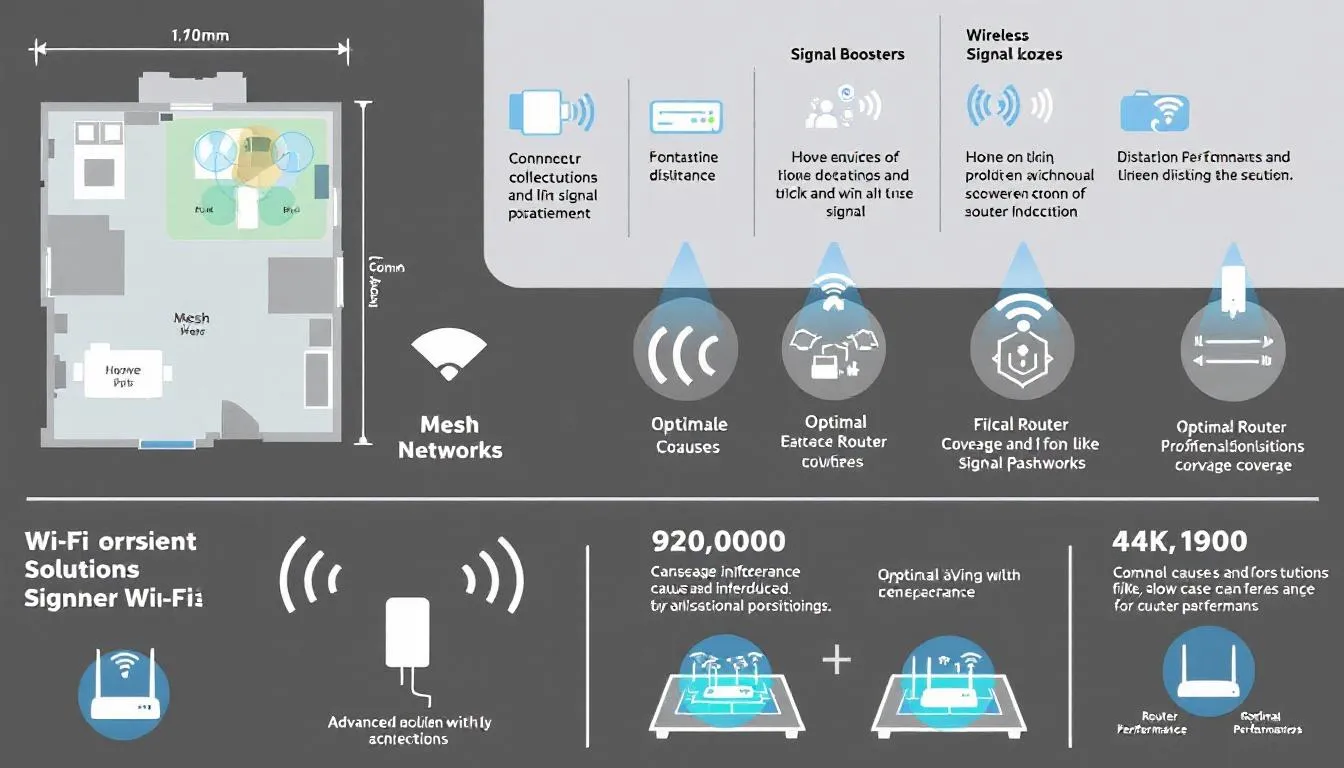
For those who continue to experience Wi-Fi drops despite basic solutions, advanced troubleshooting steps may be necessary, including adjustments to your router settings. Mesh Wi-Fi systems use multiple routers to extend coverage and improve connection reliability throughout your home or office. Advanced solutions include:
- Using Wi-Fi extenders or mesh networks
- Switching Wi-Fi channels
- Resetting network settings These methods address more complex issues and provide a more stable internet connection.
The following subsections explore these advanced solutions in detail, offering practical advice on effective implementation. By taking these additional steps, you can tackle even the most persistent Wi-Fi issues and enjoy a reliable online experience.
Using Wi-Fi Extenders or Mesh Networks
Wi-Fi extenders and mesh networks are excellent solutions for eliminating dead zones and enhancing signal range. Mesh wifi systems are designed to eliminate dead spots and provide seamless coverage by connecting multiple access points. Here are some ways to improve your Wi-Fi coverage:
- wifi extenders boost the signal in specific areas, helping to improve overall Wi-Fi coverage.
- Place the router centrally and elevated to maximize signal distribution.
- Use a Wi-Fi extender to extend your Wi-Fi range and reduce the chances of connection drops.
Mesh systems work by covering larger areas without the need for separate SSIDs, simplifying connectivity. These systems are particularly useful in larger homes or buildings with multiple floors, as they provide consistent coverage throughout the space with a mesh system and a mesh wifi system.
However, it’s important to note that using Wi-Fi extenders can introduce some latency compared to a direct connection. By carefully choosing and positioning your extenders or mesh network units, you can maximize coverage while minimizing latency, ensuring a stable and reliable Wi-Fi connection.
Switching Wi-Fi Channels
Switching Wi-Fi channels can significantly reduce interference from neighboring wifi networks and improve performance. Using a wifi analyzer can help visually identify congested wifi channel options, allowing you to choose a less crowded option for your network.
By switching to a less congested channel, you can reduce interference and improve your Wi-Fi performance. Modern routers often allow for easy channel switching through the router’s admin panel, making this an accessible and effective solution for enhancing your Wi-Fi connection.
Resetting Network Settings
Resetting your advanced network settings can resolve configuration issues and restore stable connections. This process can help resolve strange disconnection issues on a computer’s network settings and ensure your reset network settings are optimized for performance.
Before resetting your network settings, it’s important to back up your login credentials to avoid losing access to your network. By performing a network reset, you can effectively address configuration problems and enjoy a more stable Wi-Fi connection.
Summary
In summary, Wi-Fi drops can be caused by a variety of factors, including router placement, electronic interference, outdated firmware and hardware, network congestion, and ISP service interruptions. By understanding these common causes and implementing the troubleshooting steps outlined in this article, you can significantly improve your Wi-Fi performance and enjoy a stable internet connection.
Remember, a reliable Wi-Fi connection is crucial for seamless online experiences, whether for work or leisure. By taking the time to diagnose and fix Wi-Fi issues, you can ensure a smooth and uninterrupted connection. Stay proactive, keep your hardware and software updated, and don’t hesitate to seek help from your ISP when needed. Here’s to a future of hassle-free Wi-Fi connectivity!
Frequently Asked Questions
What blocks the Wi-Fi signal the most?
Metal and concrete are the most significant obstacles to Wi-Fi signals, along with other materials like plaster, ceramic tiles, and furniture. To improve your Wi-Fi connectivity, consider minimizing these barriers in your space.
Why does my Wi-Fi keep dropping even though my router is new?
Your Wi-Fi may keep dropping despite having a new router due to interference, poor placement, or network congestion; ensure the router is positioned away from electronic devices and double-check your network settings.
How often should I update my router’s firmware?
You should update your router’s firmware at least once every few months to maintain security and performance of your wifi connection . Regular checks for updates are essential for optimal operation.
Can too many devices connected to my Wi-Fi cause drops?
Yes, connecting too many devices to your Wi-Fi can cause network congestion, leading to bandwidth issues and intermittent disconnections. It’s advisable to manage the number of connected devices to ensure stable connectivity.
What should I do if my Wi-Fi drops during video calls?
To resolve Wi-Fi drops during video calls, make sure your router is strategically placed to minimize interference and utilize QoS settings to prioritize your bandwidth. If problems continue, reach out to your ISP for support.
Need Tech Help Now?
Get expert remote support for $100 per issue, no contracts and no hidden fees.
Schedule Your Session: https://bookings.direct-support.com/#/book or visit Direct-Support.com to get started.