
Working from home can be great until tech problems, especially a stable internet connection, get in the way. In this guide, we’ll dive into 15 tech issues every home office encounters: how to fix them. From slow internet to computer crashes, we’ve got you covered with practical solutions to keep you productive.
Key Takeaways
- Unstable internet connections and slow computer performance are the top tech issues in home offices, often caused by outdated equipment or too many devices sharing bandwidth.
- Regular backups, effective cybersecurity practices, and software compatibility checks are crucial to prevent data loss and protect sensitive information.
- Common frustrations like printer connectivity problems and inconsistent remote access can be resolved with simple troubleshooting tips and by using reliable technology setups.
Introduction to Home Office Tech Challenges
The rise of remote work has transformed the way we approach our daily tasks, but it’s also introduced a host of new tech issues that can disrupt productivity. Remote workers often find themselves grappling with slow computers, outdated hardware, and persistent internet connectivity problems that simply weren’t as common in a traditional office setting. These challenges can make it difficult to maintain a smooth workflow and can quickly become a source of frustration. Whether you’re dealing with lagging video calls, unreliable internet connectivity, or the limitations of older devices, understanding these common obstacles is the first step toward overcoming them. In this article, we’ll break down the most frequent tech issues faced by remote workers and provide practical solutions to help you stay connected and efficient, no matter where you’re working from.
Setting up a Home Office
Creating an effective home office starts with a strong foundation: a reliable internet connection and a secure Wi-Fi network. For remote workers, choosing the right internet service provider is crucial to ensure a stable internet connection that can handle video calls, large file transfers, and multiple devices. Position your Wi-Fi router in a central, elevated location to minimize interference and maximize coverage throughout your workspace. Don’t overlook security—protect your Wi-Fi network with a strong password and regularly update your router’s firmware to guard against security vulnerabilities. Taking these steps not only safeguards your sensitive data but also helps prevent unauthorized users from accessing your network. By prioritizing both connectivity and security, you’ll set yourself up for a productive and worry-free remote work experience.
Unreliable Internet Connection
One of the most frustrating tech issues in a home office is an unreliable internet connection. Poor connectivity can hinder productivity, causing employees to lose up to 30 minutes daily. This problem is particularly challenging for digital nomads and remote workers who rely heavily on a stable internet connection for their internet access and internet connectivity problems, especially ensuring they are on the same wi fi network .
Common causes of unreliable internet connections include signal interference, faulty routers, and too many devices sharing the network. Increased remote work has led to higher bandwidth demand, straining existing infrastructure. Many households share a single internet connection for multiple users, which can degrade performance.
To improve your internet connectivity, consider:
- Optimizing your Wi-Fi network with better routers or signal boosters.
- Upgrading to a higher-tier internet plan to alleviate slow speeds caused by network saturation.
- For persistent issues, upgrading your internet service provider plan or switching providers may be necessary.
In case of temporary network glitches, consider the following to maintain connectivity:
- Use a mobile hotspot as an alternative.
- Ensure your devices are connected to the correct Wi-Fi network.
- Maintain up-to-date network drivers to help prevent connectivity issues.
- Check, update, or configure your network adapters to resolve connectivity issues and optimize network performance.
Addressing these common causes and implementing these solutions can significantly enhance your internet connectivity, reducing the frustration associated with a slow or unstable connection.
Slow Computer Performance
A slow computer can be a major hindrance to productivity in a home office. Factors such as unnecessary files, outdated software, and outdated hardware, along with background startup programs can contribute to slow performance. Common causes include background applications, lack of storage, malware, and aging hardware.
Malware and viruses can consume computer resources, leading to reduced system performance. Performing a system scan and using antivirus programs can help identify and remove malicious software. Deleting unnecessary files and regularly restarting your computer can also improve performance.
Upgrading from traditional hard drives to solid-state drives can significantly enhance performance. Using built-in tools to delete unnecessary files can free up valuable disk space. Managing the applications that start automatically can reduce system resource consumption and improve speed.
Regularly updating your operating system and software is essential for incorporating performance improvements, security patches, and bug fixes. Keeping your system up to date can prevent compatibility issues and ensure optimal performance.
Implementing these solutions can improve your computer’s speed and efficiency, enabling you to work more effectively in your home office.
Printer Connectivity Issues
Printer connectivity issues can be a source of frustration in a home office. Ensuring that your printer is connected to the correct Wi-Fi network and reviewing the network settings are important steps. Additionally, it is recommended to visit the printer manufacturer’s website to download or update the latest drivers, as this is the authoritative source for official support and driver updates for your specific printer model.
If the print queue is stuck, try the following steps to restore printing functionality:
- Clear all jobs in the print queue.
- Power cycle the printer by unplugging it for a short time to resolve connectivity problems.
- Restart the printer and ensure cables are secure to refresh the printer’s connection.
Checking the printer’s wireless settings is essential to ensure it is connected to the same Wi-Fi network as the computer with the correct settings. This simple step can often resolve many connectivity issues and ensure smooth printing operations.
Following these troubleshooting steps can help you overcome printer connectivity issues, ensuring your printer functions seamlessly in your home office.
Video Call Problems

Video calls have become an integral part of remote work, but technical issues can disrupt communication and productivity. Freezing video, choppy audio, and dropped video calls often stem from an unstable or slow internet connection. Testing your video conferencing setup, including headsets and cables, before every call can help prevent these issues.
Recommendations for improving video call quality:
- Use a wired ethernet connection for stable video calls, as it eliminates issues associated with Wi-Fi.
- Upgrade your internet plan for higher upload speeds.
- Ensure proper connections to improve call quality.
To ensure adequate network capacity for VoIP and improve video conferencing quality, consider the following:
- Run a bandwidth test.
- Prioritize VoIP traffic via QoS settings to enhance performance.
- Temporarily turn off your camera.
- Relocate closer to the Wi-Fi router.
Implementing these solutions can result in smoother and more reliable video calls, enhancing communication and collaboration with your remote team.
Data Loss and Backup Failures
Data loss can be a devastating tech issue in a home office, but effective backup processes can safeguard against this risk. Implementing automated backup solutions and using recovery tools ensures timely recovery and protection against accidental data loss. End-to-end encryption is crucial for protecting sensitive data stored in the cloud against unauthorized access.
Versioning in cloud storage and cloud services allows:
- Recovery of previous file versions, reducing risks from accidental overwrites.
- Monitoring to help identify unauthorized access attempts and prevent unnoticed data loss.
- Regular testing of recovery procedures to ensure backups are functional and data can be restored effectively using file history and cloud storage solutions.
Company data should be backed up regularly, often daily or continuously based on data criticality. Performing monthly test restores verifies backups and ensures they are effective. Using a UPS provides temporary power to prevent unexpected shutdowns, which can protect against data loss.
Implementing these backup strategies significantly reduces the risk of data loss, ensuring your critical files are protected.
Cybersecurity Threats
Remote workers often lack the security infrastructure available in a traditional office, making them more vulnerable to cybersecurity threats. Cybercriminals increasingly target remote employees, exploiting weaknesses in home networks to access sensitive corporate data. Employee training on security awareness, combined with the use of antivirus software, is crucial, as many remote workers are unaware of how to recognize phishing attempts in a remote working environment. A remote worker must be particularly vigilant in these situations to mitigate human error.
Implementing multi-factor authentication can significantly enhance security, making unauthorized access more difficult for attackers. Methods to protect against cybersecurity threats include using antivirus programs, enable two factor authentication to thwart unauthorized users, and keeping security patches updated.
Enhancing your cybersecurity measures protects your sensitive data, reducing the risk of cyber attacks in your home office.
Software Compatibility Issues
Software compatibility issues can lead to performance degradation, security vulnerabilities, software conflicts, and system instability. Devices failing to connect is a common sign of compatibility issues. Other symptoms include software crashes and installation errors. Regularly updating software is essential for incorporating performance improvements, security patches, and bug fixes.
To ensure compatibility, regularly verify software updates, utilize tools designed to work together across multiple systems, and create test environments to minimize risks. Keeping your operating system and software versions up to date can prevent compatibility issues and ensure optimal performance when configured correctly.
Addressing software compatibility issues helps maintain a stable and efficient home office environment.
USB Device Recognition Problems
USB device recognition problems can be a common tech issue in a home office. Inspecting damaged cables or ports and trying a different USB port or storage devices can help identify the cause of the problem. Common signs of issues with USB devices include devices not being detected and intermittent connections.
Similar troubleshooting steps can be applied to Bluetooth devices, including checking for proper setup, updating drivers, and ensuring stable connectivity.
If a USB device is not recognized, the computer fails to detect or identify the device. To address this issue:
- Disable the USB selective suspend setting to prevent external drives from powering down and potentially becoming unrecognized.
- Be aware that minor hardware defects in the USB port may occur due to frequent use.
- Carefully adjust the USB port if minor hardware defects are suspected to fix the problem.
Ensuring your device drivers are up to date can also help resolve USB device recognition problems. Following these troubleshooting steps ensures your usb controller and USB devices function properly in your home office.
Wi-Fi Signal Weakness
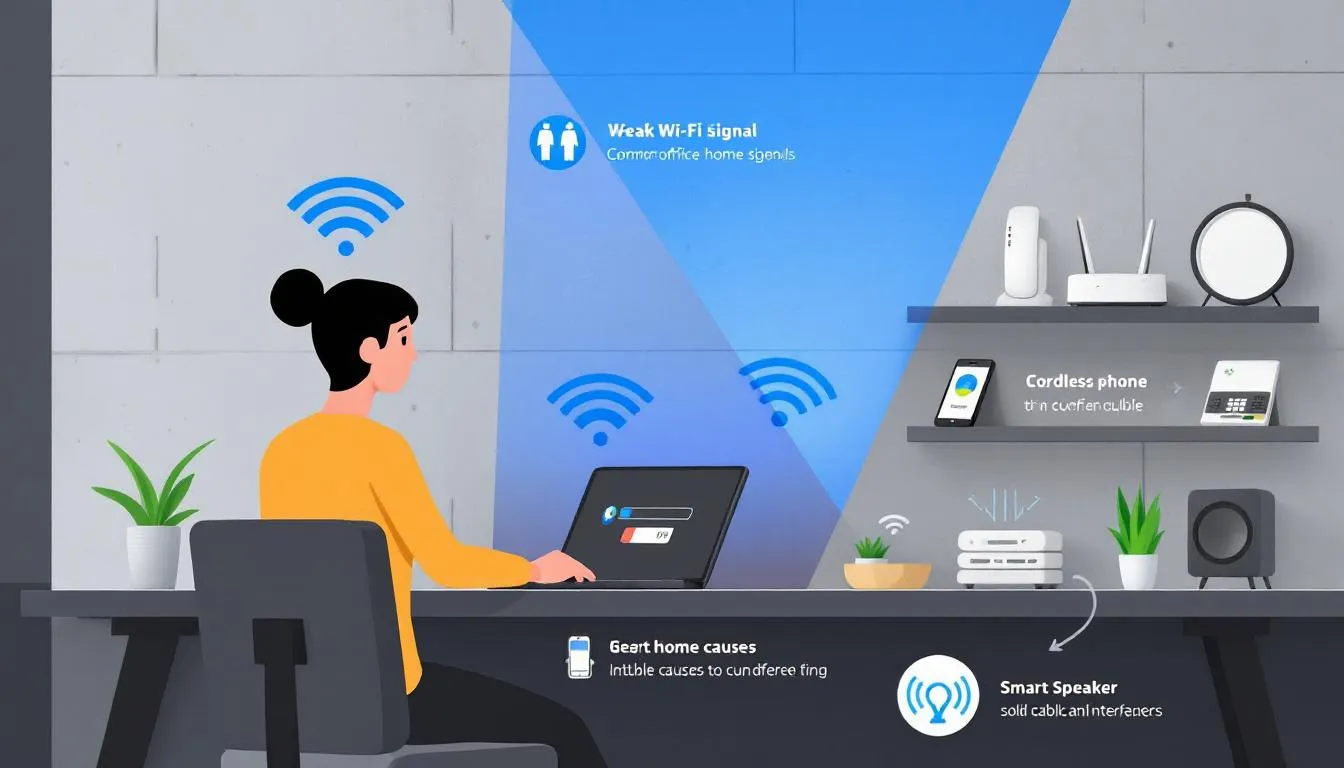
Weak or spotty Wi-Fi signals can be a significant hindrance to productivity in a home office. Poor router placement, obstructions, and interference are common causes of weak Wi-Fi signals. Positioning the router centrally and elevated, away from thick walls and electronics, and ensuring the correct wi fi password is used can optimize signal strength.
Methods to improve Wi-Fi coverage include:
- Using range extenders to rebroadcast the signal in larger spaces.
- Replacing standard router antennas with high-gain antennas to direct Wi-Fi signals more effectively.
- Placing the router centrally.
- Switching the wi fi channel.
Using dual-band or tri-band routers that support Wi-Fi 6 can greatly enhance overall Wi-Fi performance. Implementing these solutions can improve your Wi-Fi signal strength, ensuring stable internet connectivity in your home office.
Phone Charging Issues
Phone charging issues can be a common frustration in a home office. Common reasons a phone won’t charge properly include:
- A worn-out cable
- Damaged adapter
- Dust accumulation in the charging port
- Incorrect software settings
To identify a faulty charger or USB port, test with another cable or device.
Phone charging problems can stem from various issues, including faulty cables and damaged USB ports. Troubleshooting these common causes ensures your phone charges properly, avoiding unnecessary interruptions in your workday.
Overheating Devices
Overheating devices can be a major concern in a home office, leading to performance degradation and potential hardware damage. Common causes of device overheating include hardware failures :
- Dust buildup that restricts airflow
- Operating laptops on soft surfaces that block ventilation
- Running multiple applications simultaneously which generates more heat.
High fan noise can indicate that a device is overheating. Additionally, frequent shutdowns and noticeable performance degradation are also signs to watch for. To address device overheating:
- Clean out dust and debris from air vents every 3-6 months.
- Ensure at least 6 inches of clearance around vents.
- Consider using cooling pads or HP Command Center to adjust thermal profiles.
Taking these preventive measures ensures your devices operate efficiently, avoiding overheating issues in your home office.
Frozen Screens
Frozen screens can be a frustrating issue in a home office, often caused by overloaded RAM, driver bugs, and corrupted apps. Overloaded RAM can be identified by monitoring usage and adjusting system settings , as memory leaks lead to system freezes. Corrupted operating system files may interfere with normal software and contribute to freezes.
To improve device performance and reduce freezing:
- Clear cache files to relieve memory overload and help alleviate screen freezing.
- Restart the device to clear memory and improve overall performance, reducing the chance of freezes.
- In cases of software crashes, restart the software or update it to restore normal function.
Using Task Manager can help identify and close memory-intensive applications that may cause system freezes. Frequent system freezes may indicate deeper software or hardware problems that could require urgent attention.
Addressing these common causes and implementing these solutions, along with handling support requests efficiently, can reduce the occurrence of frozen screens, maintaining a more efficient home office environment.
File Sharing Difficulties
File sharing difficulties can hinder collaboration and productivity in a home office. Using centralized storage solutions like Google Drive or OneDrive significantly enhances file accessibility among remote workers. Implementing a quality document-sharing platform is essential for fostering collaboration among remote teams.
To improve file transfer efficiency:
- Compress large files using tools like 7-Zip or WinRAR to speed up transfers.
- Configure QoS settings on your router to prioritize file transfers in a network.
- Use a wired connection with Ethernet cables for larger file transfers to ensure stability.
Real-time collaboration features in file-sharing platforms can significantly improve team productivity. To quickly locate files based on specific criteria, set up search tools like Everything Search or Spotlight. Verify access files for shared files using admin tools and third party tools to ensure proper permissions.
Implementing these cloud storage solutions can enhance file sharing efficiency, resolving common issues that hinder collaboration in your home office.
Network Security Vulnerabilities
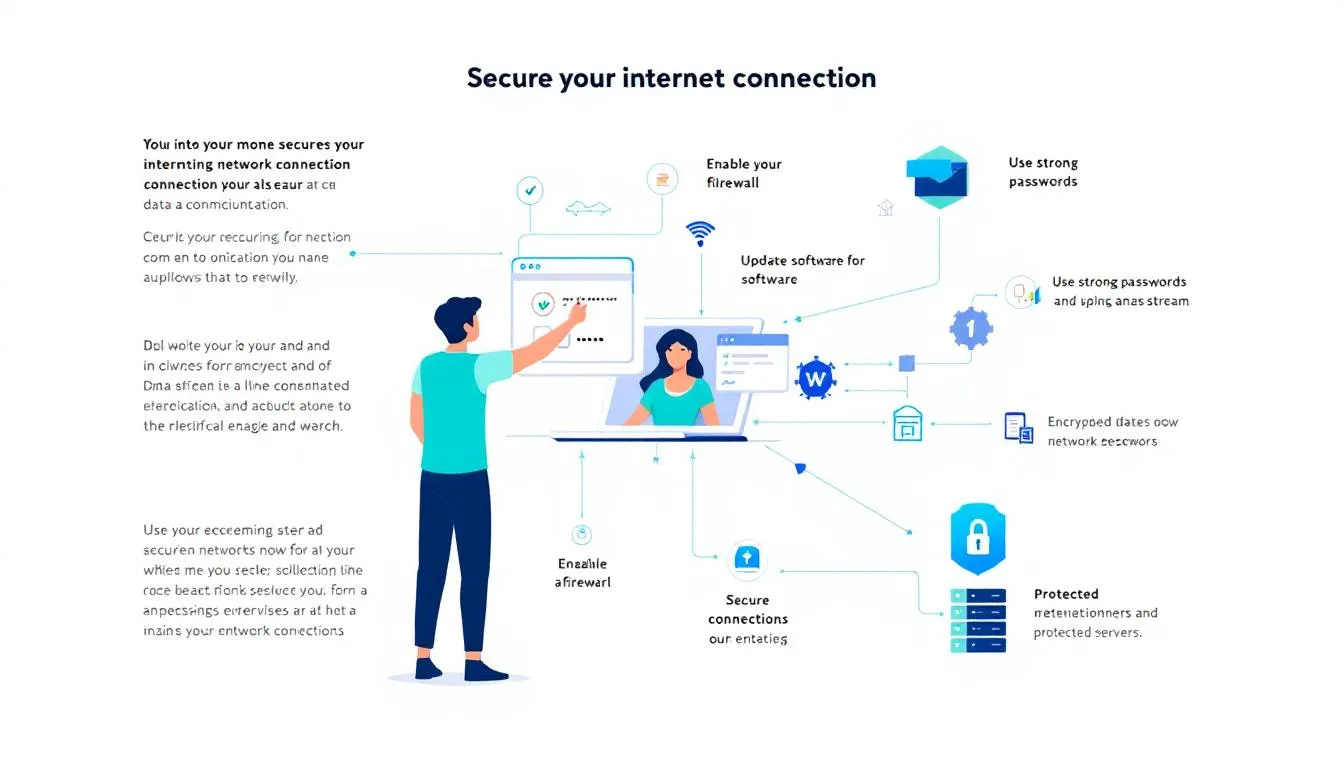
Network security vulnerabilities are a significant concern for remote workers. Remote employees are particularly exposed to cyber threats due to inadequate security on home networks and unreliable internet service provider option . Home networks typically have weaker security measures, including outdated routers and default passwords that are rarely changed.
Unsecured Wi-Fi connections are a significant risk as they can be easily intercepted by attackers, allowing them to steal sensitive information. Remote workers may neglect software updates, leaving devices vulnerable to known exploits. Firewalls play a crucial role in network connections security by blocking unauthorized access.
Regular updates are important for network security as they close known security gaps and vulnerabilities. Users may find themselves unable to access internal services. Additionally, there is a heightened risk of exposure to external attacks. To secure a router, it is recommended to enable WPA3 or WPA2 with a strong passphrase.
Managing remote devices with tools that enforce compliance with security policies helps protect against potential breaches. Strengthening your network security measures protects your home office from vulnerabilities, reducing the risk of data breaches.
Inconsistent Remote Access
Inconsistent remote access can be a major frustration for remote workers, often stemming from intermittent internet connections that disrupt workflows. Poor internet connectivity contributes to remote access problems, causing frustration in collaboration and communication. Network interruptions can lead to dropped sessions and potentially result in lost files, along with time lost troubleshooting connectivity issues.
Real-time IT support can:
- Troubleshoot remote access issues directly, significantly reducing downtime.
- Use robust remote access tools to ensure secure connections and provide automatic reconnection features for stability.
- Perform regular software updates to fix bugs and compatibility issues that improve remote access connectivity.
Ensuring that all software used for remote access is compatible and up to date can prevent future issues. Addressing these common causes and implementing these solutions ensures reliable and consistent remote access for your remote work.
Minimizing Human Error
Human error is one of the most common causes of tech issues in a home office, but it’s also one of the easiest to address with the right habits. Start by keeping your operating system, antivirus software, and all applications up to date with the latest security patches. This helps prevent compatibility issues and shields your devices from cyber threats that can lead to data breaches. Be cautious when clicking on links or downloading files, and always verify the source to avoid falling victim to phishing scams. Regularly review your security settings and educate yourself on best practices for safe online behavior. By staying vigilant and proactive, you can significantly reduce the risk of human error and keep your home office running smoothly.
Tech Support and Resources
When you encounter tech issues in your home office—whether it’s a dropped internet connection, a stubborn Wi-Fi network, or a malfunctioning device—knowing where to turn for help can save you valuable time. Start by exploring online forums, official support websites, and video tutorials that address common problems. Many internet service providers and hardware manufacturers offer dedicated support hotlines and live chat options for troubleshooting. If you need hands-on assistance, local repair services can often resolve more complex issues. When reaching out for support, be ready to describe your problem in detail, including any error messages or recent changes to your setup. By leveraging these resources and seeking help promptly, you can quickly resolve tech issues and get back to work with minimal disruption.
Preventing Tech Issues
The best way to deal with tech issues is to prevent them before they start. Regularly delete unnecessary files to free up disk space and keep your computer running efficiently. Make it a habit to update your operating system and install security patches as soon as they become available—this not only improves performance but also protects against data breaches and cyber threats. Monitor your internet connection to ensure it remains stable, and address any slow performance issues promptly by checking for software updates or hardware upgrades. By staying proactive with maintenance and security, you can minimize the risk of unexpected tech issues and maintain a smooth, productive workflow in your home office.
Summary
In summary, the tech issues encountered in a home office can range from unreliable internet connections to cybersecurity threats, but with the right knowledge and tools, these challenges can be effectively managed. Stable internet connectivity is crucial for productivity, and optimizing your Wi-Fi network or upgrading your internet plan can make a significant difference. Similarly, improving computer performance through regular maintenance and updates ensures a smoother work experience.
Printer connectivity issues, video call problems, and data loss can all be mitigated with the right troubleshooting steps and preventive measures. Ensuring your devices and software are up to date and properly configured is key to avoiding many common tech issues. Cybersecurity is an ongoing concern, especially for remote workers, so implementing robust security measures is essential.
By addressing software compatibility issues, USB device recognition problems, and Wi-Fi signal weaknesses, you can maintain a more efficient and productive home office environment. Taking proactive steps to prevent phone charging issues, device overheating, and frozen screens will further enhance your work experience.
In conclusion, being aware of these common tech issues and knowing how to fix them can save you time and frustration, allowing you to focus on what really matters: your work. With these tips and solutions, you can create a more reliable, secure, and efficient home office setup.
Frequently Asked Questions
Is remote work dying in 2025?
Remote work isn’t dying in 2025; it’s actually evolving and gaining traction, with a significant increase in employees working remotely. So, it looks like remote and hybrid models are here to stay!
What can I do if my internet connection is unreliable?
If your internet connection is unreliable, try optimizing your Wi-Fi with a better router or signal booster, or consider upgrading your plan. You can also use a mobile hotspot in a pinch and make sure your devices are on the correct network with updated drivers.
How can I improve my computer’s performance?
To boost your computer’s performance, regularly scan for issues, delete unnecessary files, and manage your startup programs. Upgrading to a solid-state drive and keeping your system updated will also make a significant difference!
What should I do if my printer won’t connect to my computer?
If your printer won’t connect to your computer, try checking that it’s on the right Wi-Fi network and updating the printer driver. Don’t forget to clear the print queue and power cycle the printer as well!
How can I prevent data loss in my home office?
To prevent data loss in your home office, set up automated backups and use encryption to keep your data safe. Don’t forget to test your recovery processes regularly and consider a UPS for added protection against unexpected outages.
Need Tech Help Now?
Get expert remote support for $100 per issue, no contracts and no hidden fees.
Schedule Your Session: https://bookings.direct-support.com/#/book or visit Direct-Support.com to get started.